
Zebra GK420d to ZD421: Replacement and Migration Guide
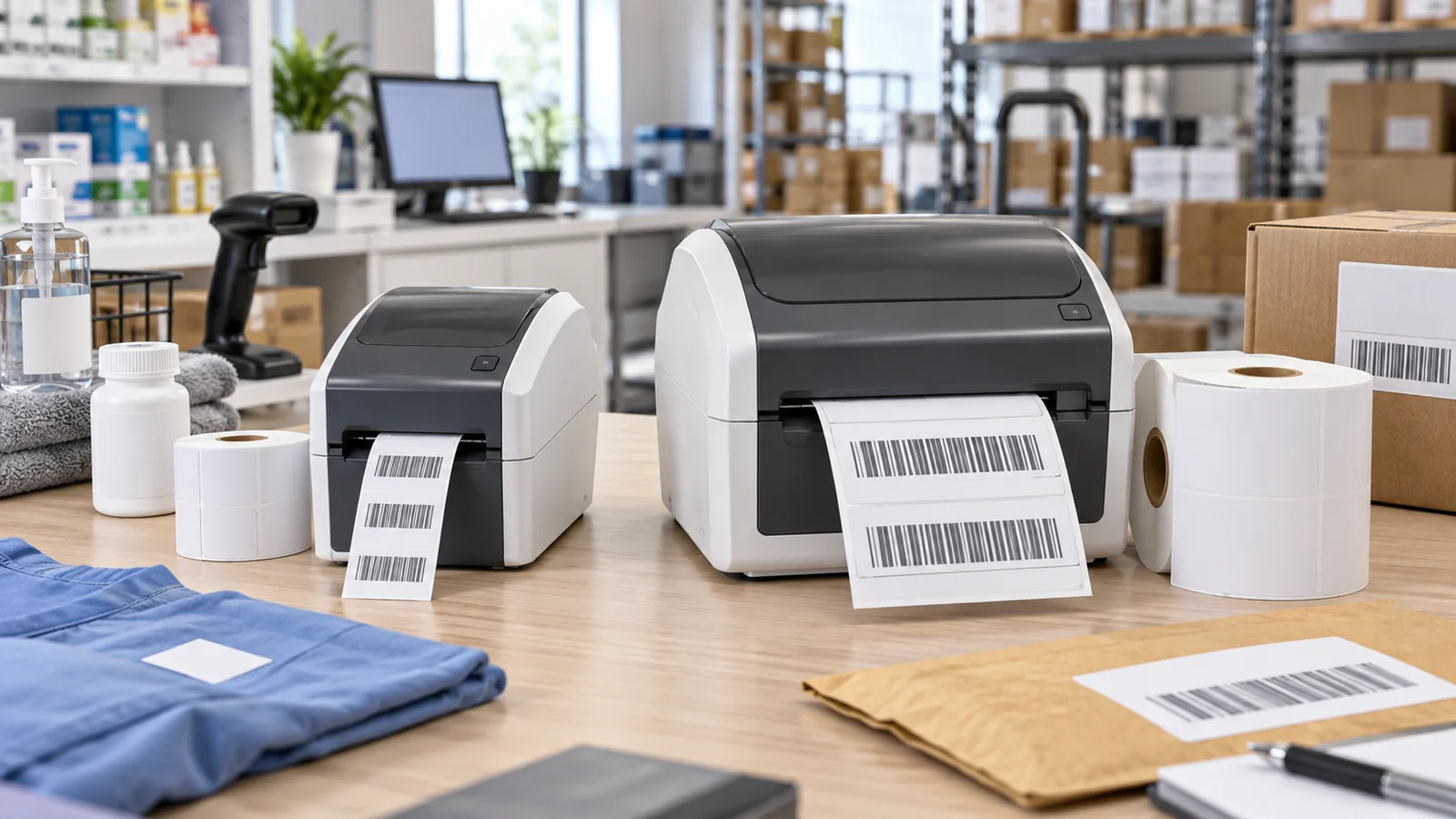
Replace a Zebra GK420d with the right ZD421 configuration, then check labels, resolution, drivers, connections and application output before switching production.
Key Points
- Zebra names ZD421 as the GK420d replacement family; match the exact configuration to the existing job.
- ZD421d is the direct-thermal starting point for retaining a ribbon-free workflow.
- Shared printer-language support does not guarantee unchanged templates, drivers or accessories.
- Pilot the replacement with real application output before moving production queues.
Zebra lists ZD421 as the replacement for GK420d. For a straightforward direct-thermal replacement, start with ZD421d, then match the resolution, interface and media to the existing station. Treat the purchase as a small migration project: the printer is only one part of the process that produces a usable label.
This guide focuses on replacing an installed printer, rather than comparing the whole Zebra range. The cover is an editorial illustration of a labeling station; the product cards below show manufacturer images. Our recommendations combine official documentation with a practical migration checklist, not hands-on reliability or throughput measurements.
Which ZD421 Should Replace a GK420d?
GK420d is a direct-thermal printer. If the current job uses heat-sensitive labels without a ribbon and those labels still meet the application requirements, ZD421d is the natural configuration to evaluate. Do not order solely from the ZD421 family name: thermal-transfer and ribbon-cartridge versions serve different supply workflows.
Record the full part number of the proposed printer and have the supplier confirm the printing method, DPI, installed connections, regional power bundle and any cutter or dispenser. If the job now requires more durable labels, review our direct thermal vs thermal transfer guide before treating a thermal-transfer configuration as an interchangeable purchase.
GK420d Support Has Ended: Check the Regional Dates
| Region | Printer discontinuation | Service and support ended |
|---|---|---|
| APAC | December 31, 2021 | February 28, 2025 |
| EMEA, North and Latin America | January 31, 2022 | April 30, 2025 |
Source: Zebra GK420d support and replacement notice, checked November 20, 2026. Manufacturer support ending is different from a printer ceasing to function. A working unit may continue printing, but the service and recovery plan deserves review before a failure interrupts shipping or another business process.
For a single low-volume station, a tested spare may provide a manageable transition. For several stations, schedule one pilot first and use its approved configuration as the rollout reference. Decide who can restore printing if the replacement does not pass the application checks.
What Changes When You Move to ZD421?
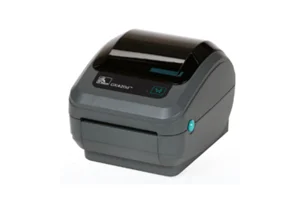
The legacy direct-thermal printer whose media, settings and application workflow need to be recorded.
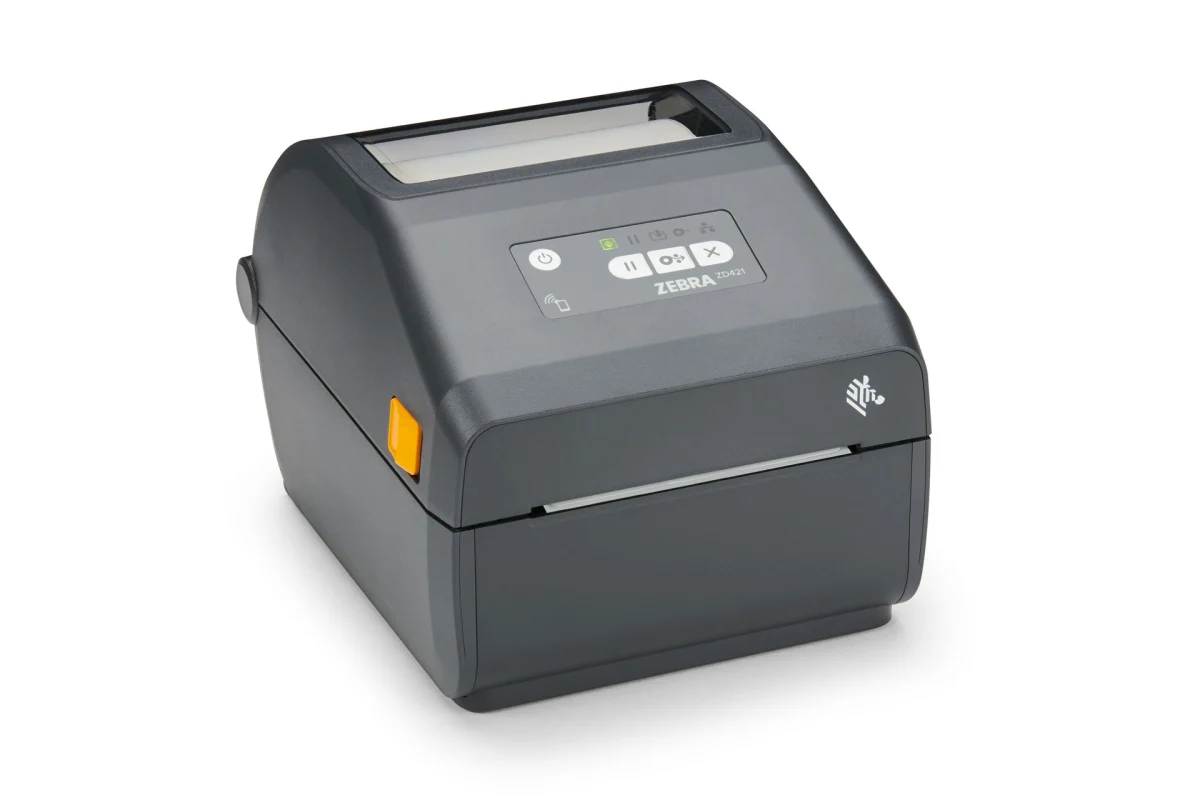
The direct-thermal configuration to evaluate when retaining a ribbon-free label workflow.
| Decision | GK420d baseline | ZD421 replacement check |
|---|---|---|
| Printing method | Direct thermal | Choose the direct-thermal model to preserve that workflow |
| Resolution | 203 dpi | 203 or 300 dpi configuration; match the template plan |
| Listed maximum speed | 5 inches per second | Up to 6 ips at 203 dpi or 4 ips at 300 dpi |
| Printer languages | ZPL and EPL | Family documentation includes ZPL/EPL support; validate the exact format and model |
| Connection | Inspect the installed interface | Confirm the ordered interface and application transport |
| Supplies and accessories | Record the currently approved parts | Check compatibility individually rather than assuming reuse |
Hardware references: GK420d user guide and ZD421/ZD621 printer introduction. Speed figures are vendor maxima, not completed shipping labels per minute. Rendering, data transfer, label length, media and operator handling affect the full job.
Can You Keep the Same Labels?
Possibly, but a shared width class does not establish compatibility. Record label width and length, liner width, gap or black-mark arrangement, roll diameter, core size and any sensing requirements. Compare those measurements with the exact printer's supported media, then load an actual production roll.
Use the approved material and adhesive in the pilot. Replacing the printer and changing the label supplier at the same time makes faults harder to isolate. Keep a known-good printed sample so alignment, text, darkness and barcode quality can be compared consistently.
Calibrate after loading the test media. Zebra's SmartCal procedure uses the PAUSE and CANCEL buttons held together for two seconds after the printer is ready; the printer feeds labels to establish media sensing. Follow the instructions for the exact model and media, and use the documented manual calibration procedure if automatic calibration does not recognize them correctly.
203 vs 300 DPI: Preserve the Physical Label Layout
If the existing 203 dpi output already meets requirements, retaining that resolution keeps one important variable consistent. Choose 300 dpi when the design needs it, such as a validated smaller barcode or finer text, rather than making it an automatic part of replacement.
A raw template expressed in printer dots can change physical size when the same dot counts are sent to a different-resolution printer. An application or driver may generate a different output path, so check what the actual software sends. Validate field positions, font substitution, graphics, barcode dimensions and quiet zones, including long names and unusual characters.
Our Zebra 203 vs 300 DPI guide covers the resolution decision in detail. During migration, require both correct printed data and successful scanning with the devices used in the real workflow. Where a customer specifies a barcode grade, include the appropriate verification process rather than relying only on a successful handheld scan.
Check Drivers, Interfaces and Application Output Separately
Determine whether the application prints through a Windows queue, generates a document such as a PDF, or sends printer commands directly. Record the queue name, port, media settings and any application-specific printer selection. A printer language match alone does not validate every one of these paths.
Use Zebra's supported installation package for the selected printer and operating system. For Windows USB installation, follow the Zebra setup sequence: prepare the driver/setup utility first and connect or power the printer when instructed. Do not assume the legacy queue's driver is the correct driver for the replacement.
Create a clearly named test queue while the existing station remains available. For a network printer, coordinate its address and queue changes; avoid assigning the same address to two active devices. For USB, verify that the business application selects the new queue rather than silently retaining the old one.
Confirm Ethernet, serial or wireless requirements against the exact SKU. Setup features and wireless printing capability are not interchangeable descriptions. Use the new printer's specified power supply and verify other accessories by their supported part numbers.
A Five-Step Migration Checklist
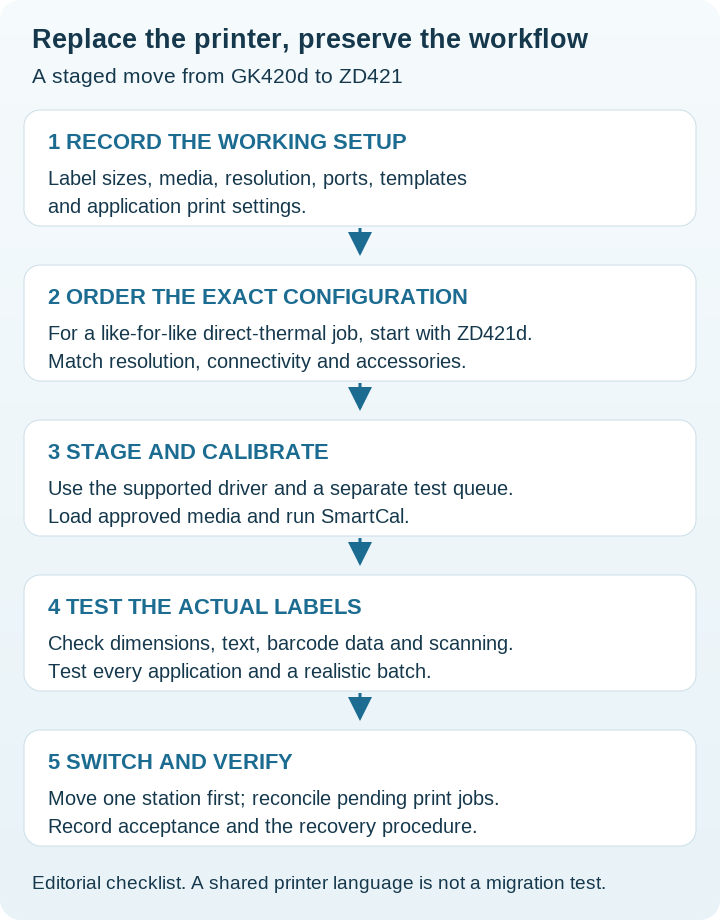
- Capture the baseline: save the printer configuration, queue settings, label formats and representative printed samples.
- Confirm the order: match print method, DPI, connection and accessories to the agreed requirements.
- Stage the printer: install the supported software, load approved supplies and calibrate away from the live queue.
- Run acceptance: print from every relevant application, test realistic batches and check scanning, alignment and data.
- Switch one station: reconcile pending jobs, update the application destination, monitor output and document recovery before expanding the rollout.
Test a restart and a roll change as part of acceptance. Operators should be able to load media, identify the correct queue and restore printing without guessing settings. Reconcile test and live jobs carefully so a shipping or inventory label is not accidentally produced twice.
Compare the Complete Replacement Cost
Ask for a quote covering the exact printer, required connections, compatible accessories, initial supplies, installation, template changes and an agreed spare or service arrangement. A lower hardware price is not necessarily a lower migration cost if it requires unexpected interface or software changes.
Browse the Zebra price list and request an exact-SKU quote when a configuration is absent. Prices update weekly and stock information daily; confirm the bundle and availability before ordering. For narrower labels, see ZD411 vs ZD421; for a different workload tier, see the desktop and industrial printer comparison.
Official Sources and Review Method
Manufacturer references checked November 20, 2026. The migration sequence and purchasing recommendations are editorial guidance; no independent benchmark or universal compatibility guarantee is claimed.
FAQ
What replaces the Zebra GK420d?
Zebra lists ZD421 as the replacement family. For an existing direct-thermal workflow, shortlist ZD421d and verify the complete part number, resolution, interfaces and media requirements.
Can I keep using a GK420d after support ends?
The end of manufacturer support does not itself stop printing. Assess your service options, spare equipment and application compatibility, and plan a replacement around operational needs.
Can I use my existing labels in a ZD421d?
Potentially, if the direct-thermal media, dimensions, roll construction and sensing method fit the selected printer. Calibrate and test the actual supplies before approving reuse.
Will my GK420d label templates work without changes?
Do not assume so. Validate the printer language, resolution, fonts, graphics, barcode dimensions and output from the actual application. A Windows test page alone is insufficient.
Should I upgrade to 300 dpi during the replacement?
Only when the label design requires it and a pilot validates the result. Moving from 203 to 300 dpi can require template changes; the existing DPI guide explains the trade-offs.
Check Current Zebra Pricing
Browse the full Zebra GPL on GlobalPriceList.com. Prices are updated weekly; stock information is updated daily.
View Zebra Price List See Zebra Price History