Jabra Microphone Not Working? Windows, Mac and Teams Fixes
Troubleshoot a silent Jabra headset microphone by checking mute, USB or Link connections, operating-system permissions and meeting-app input selection.
Key Points
- First establish whether the microphone fails in the operating system or only in one meeting application.
- Hearing call audio does not prove that the application has selected the headset microphone.
- Test the supported USB or Link adapter path before changing firmware or resetting the headset.
- Use model-specific instructions for mute behavior, pairing and reset; there is no universal Jabra button sequence.
If your Jabra microphone is not working, check mute and the selected input device first, then test whether the operating system receives your voice. If it does, move to the meeting application's settings and permissions. This sequence narrows the fault before you reset a working headset or order a replacement.
This guide covers computer-connected business headsets, including wired USB and supported Link-adapter connections. Desk-phone bases, consumer earbuds and remote-desktop audio can require different procedures. Keep the exact model and connection method visible while troubleshooting.
1. Identify where the microphone stops working
| Observation | Next check |
|---|---|
| No Jabra input appears in the computer | USB connection, adapter detection and supported pairing |
| Input appears but no level is detected | Hardware mute, microphone position and OS input test |
| OS input responds, but Teams is silent | Teams microphone selection and app permissions |
| Voice works, but headset buttons do not | Call-control integration and competing calling apps |
| Problem occurs only through a dock | Compare a direct supported computer connection |
Use one short spoken phrase for each test and change one setting at a time. Record what changed. If you switch the adapter, application and firmware together, a successful result will not tell you which part was responsible.
2. Check mute and the physical connection
Confirm the headset is powered, charged where applicable, and not muted in either the headset controls or the application. Use the manual for microphone-boom position and mute behavior: different models use different controls, and some have no boom at all. Listening to music successfully only confirms the output path.
For wired USB, reconnect to a supported port directly on the computer for a comparison test. Do not assume a charging cable provides USB audio on every wireless headset. For a wireless model supplied with a Jabra Link adapter, confirm that the computer detects the adapter and that the headset is connected to it.
Jabra's native-Bluetooth guidance warns that full functionality may differ from the supported Link connection on the models it covers. Start with the connection documented for your model; do not assume every Bluetooth path provides identical controls.
3. Test the microphone in Windows
In Windows 11, open Settings > System > Sound and select the intended device under Input. Speak and use the available microphone test or level display. The name may identify the Link adapter rather than the headset itself. Confirm the device by checking your connection, not by choosing the first microphone in the list.
Next check Settings > Privacy & security > Microphone. Microphone access and the relevant application access must be allowed. Desktop applications have a separate access control. On a managed computer, ask IT about a locked setting instead of trying to bypass the policy. Microsoft's microphone troubleshooting guide documents these checks.
If the device is detected but the input remains silent, repeat using another supported port or computer where available. A second computer test helps distinguish a local configuration issue from a fault that follows the headset or adapter. It is evidence to narrow the investigation, not a definitive hardware diagnosis on its own.
4. Check Mac input and microphone permissions
On a Mac, select the intended microphone in the sound input settings and check whether it responds when you speak. Then open System Settings > Privacy & Security > Microphone and review access for the calling application. Apple documents this permission control in its microphone access guide.
When the meeting runs in a browser, the browser must have the required operating-system access and the meeting website must have permission to use the microphone. Reopen the application if prompted after a permission change. Test again before making another adjustment.
5. If it works in the OS, check Teams or the browser
In Teams device settings, explicitly choose the headset or Link input under Microphone and check the Speaker separately. Use the available test-call or pre-join audio test for your client. Microsoft describes these controls in Manage your device settings; the exact interface can vary by client and release.
If Teams alone remains silent, review its app permissions and, for web meetings, the site's microphone permission. Microsoft's Teams microphone troubleshooting page covers this layer. A working OS input test is a useful reason to focus here before replacing the headset.
Close other calling apps for one controlled comparison. Audio and button behavior are different problems: if participants hear you but answer/end or mute synchronization fails, investigate integration. Our Jabra Teams vs UC guide explains certification and connection choices without treating a variant change as a universal microphone fix.
6. Update supported firmware, then escalate with evidence
Use Jabra Direct for supported-device firmware and settings. Note the current headset and adapter versions before updating, follow the displayed instructions and keep the connection stable. On company-managed equipment, coordinate with IT's update process.
Use a reset only when the model-specific support procedure calls for it, and be ready to restore pairing and settings. A generic button combination copied from another Jabra model can waste time or change the wrong setting.
If the problem persists, send support a concise record: headset model and variant, adapter model, operating system, firmware, calling app, connection path, and the results of the OS and second-computer tests. Include whether the fault affects all apps or only one. Avoid recording a real meeting just to demonstrate a fault; a brief test phrase is sufficient.
If support confirms replacement is appropriate, compare the exact connector, adapter and certification in the Jabra price list and product catalog. For a different working style, review our Evolve2 55, 65 Flex and 75 comparison. Check compatibility before buying a spare adapter; a matching USB connector alone does not establish headset compatibility.
Official sources
- Microsoft: Windows microphone troubleshooting.
- Apple: microphone permissions on Mac.
- Microsoft: Teams device settings.
- Microsoft: Teams microphone troubleshooting.
- Jabra: native Bluetooth and Link functionality.
- Jabra Direct.
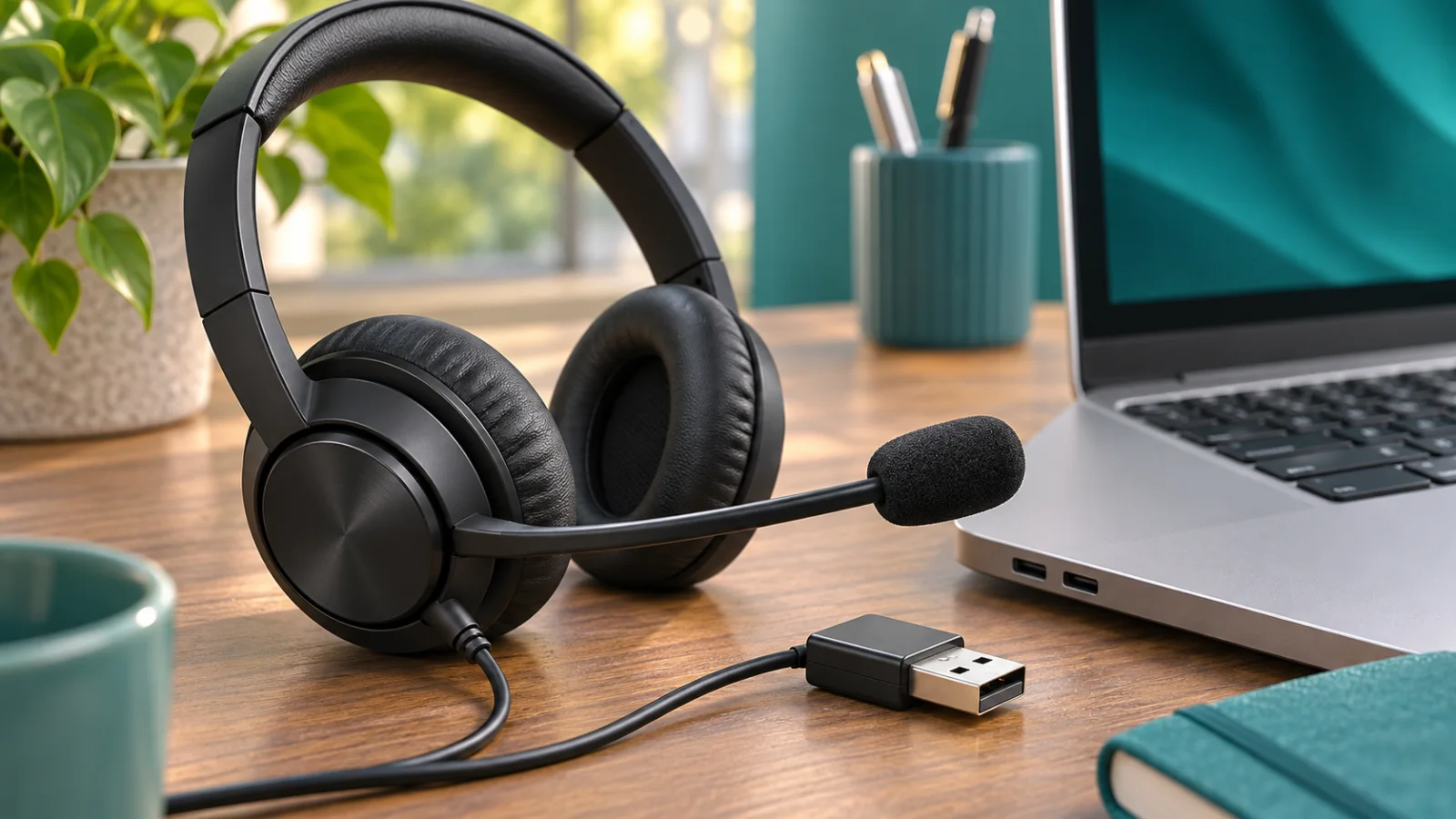
Reviewed November 9, 2026. This is a diagnostic workflow, not a guarantee of a fix for every model. The cover uses illustrative equipment.
FAQ
Why can I hear a call but nobody can hear my Jabra microphone?
The speaker and microphone are separate paths. Check headset and app mute, the selected input device, and microphone permissions, then test input outside the meeting app.
Why does my Jabra microphone work outside Teams but not in Teams?
Check the microphone selected in Teams, app permissions and website permissions if using a browser. Test with other calling applications closed.
Should I reset my Jabra headset first?
No. Start with mute, connection and input selection. Use the exact model reset instructions only when appropriate and expect to restore pairing or settings.
Does Jabra Direct fix every microphone problem?
No. It provides firmware and settings tools for supported devices, but cannot by itself resolve every operating-system permission, application setting or hardware fault.
Check Current Jabra Pricing
Browse the full, daily-updated Jabra GPL on GlobalPriceList.com.
View Jabra Price List See Jabra Price History